If you’ve ever watched a shopper hover on a product page, hesitate, then bounce—your “inventory story” might be missing. Shopify can track inventory levels, but most themes don’t clearly translate that into a buyer-friendly signal like “Only 3 left” or “Low stock”.
In this guide, you’ll learn how to add low stock on Shopify in a way that improves conversions without damaging trust. We’ll cover the manual options, Shopify low inventory alerts, and how to scale it across a catalog.
Why “low stock” works (and when it backfires)
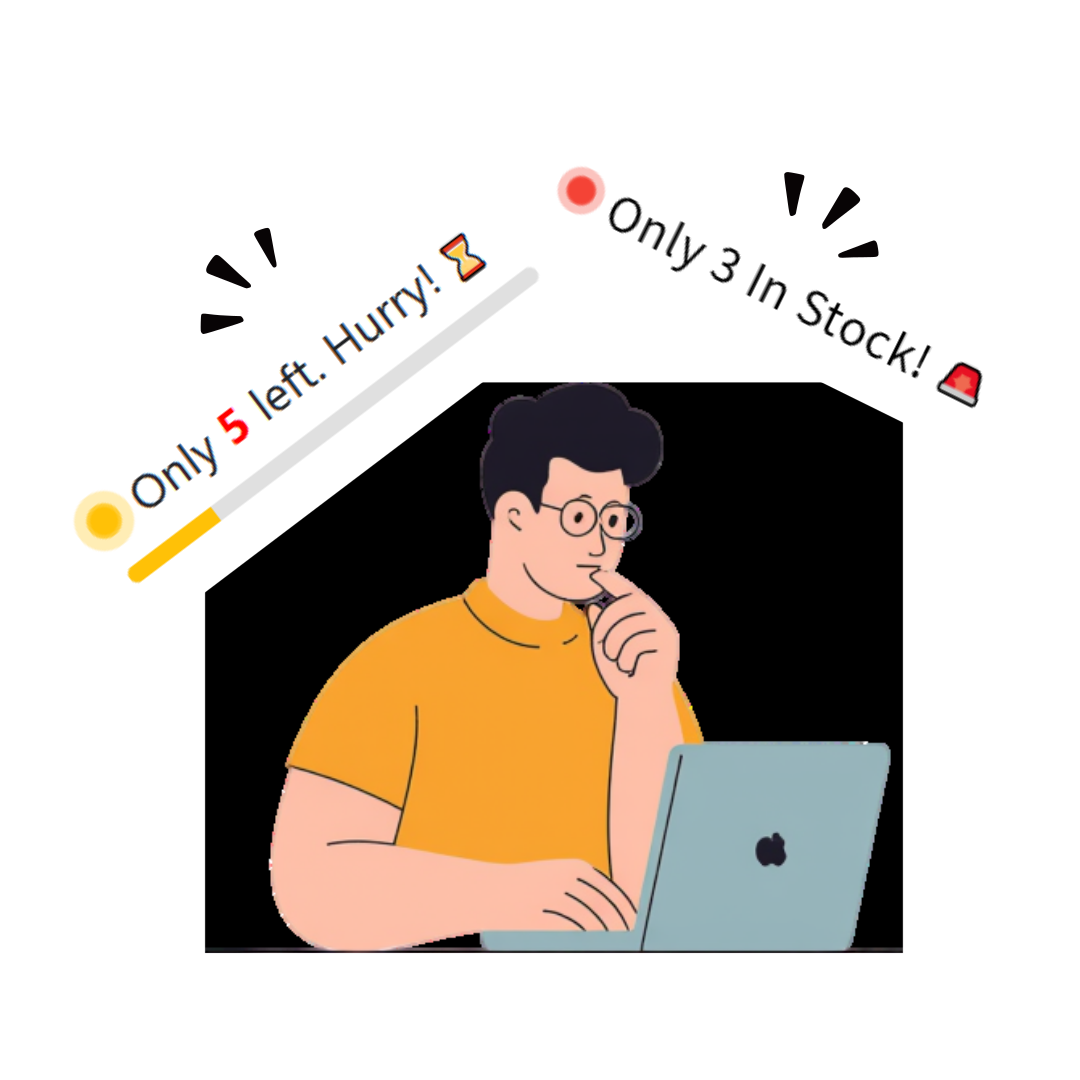
Low stock banners are a form of sales proof and social proof: they signal demand and reduce the fear of making the “wrong” purchase decision. They also tap into FOMO—fear of missing out.
But there’s a line. If your store shows “Only 2 left” for weeks, repeat customers notice. Inaccurate urgency hurts brand trust and can increase refunds. The goal is truthful urgency: inventory messaging that reflects real Shopify stock levels.
Understand Shopify inventory levels (so your messaging is accurate)
Before you show low stock, make sure your inventory tracking is consistent:
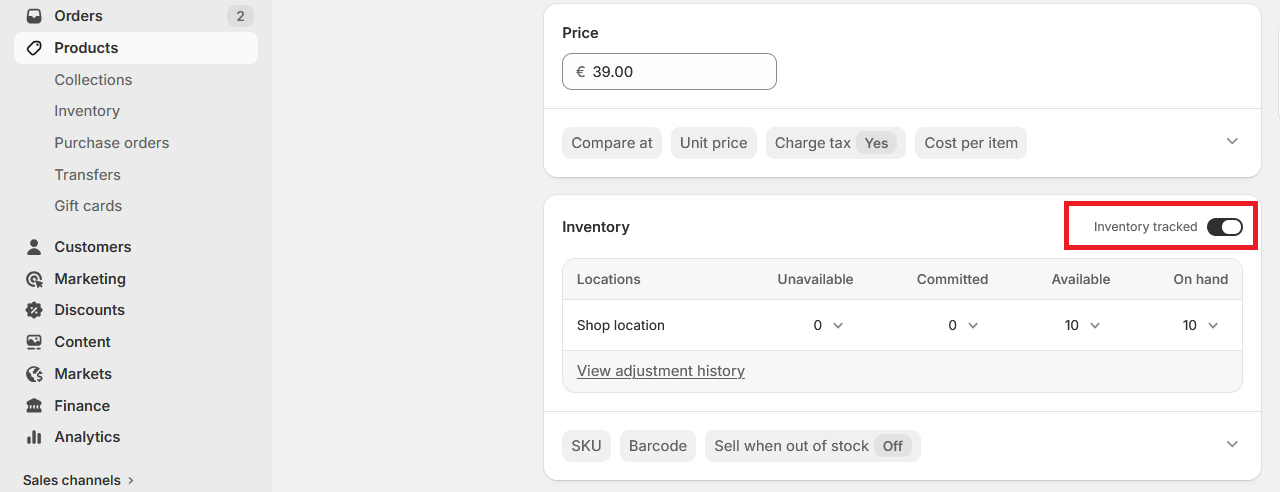
- Track quantity: In Shopify Admin → Products → select a product/variant → Inventory → enable tracking.
- Inventory per location: If you have multiple locations, your available stock depends on fulfillment settings.
- Continue selling when out of stock: This is how you enable a backorder flow (more on that later).
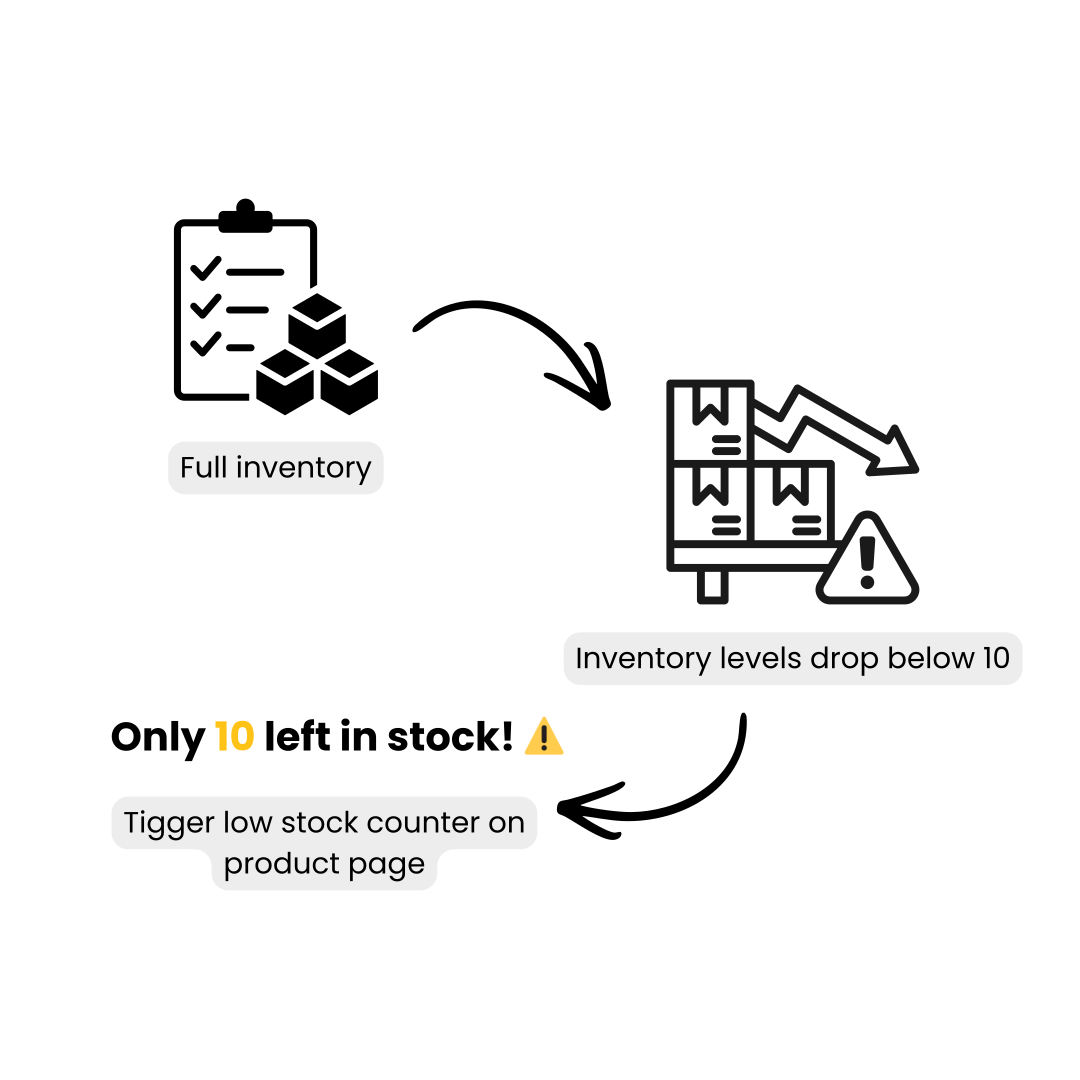
Accurate inputs = accurate outputs. Once Shopify inventory levels are correct, you can safely display “low stock” and “out of stock” states in your theme.
How to add “low stock” on Shopify (3 practical options)
There are three common ways to add low stock messaging. Which one you choose depends on how many products you manage and how much control you want.
Option 1: Manual messaging (simple, but hard to scale)
If you only have a few SKUs, you can manually add a note in product descriptions or as a theme block. The downside: it becomes inaccurate fast and creates extra work during launches and promotions.
Option 2: Theme code (accurate, but developer-dependent)
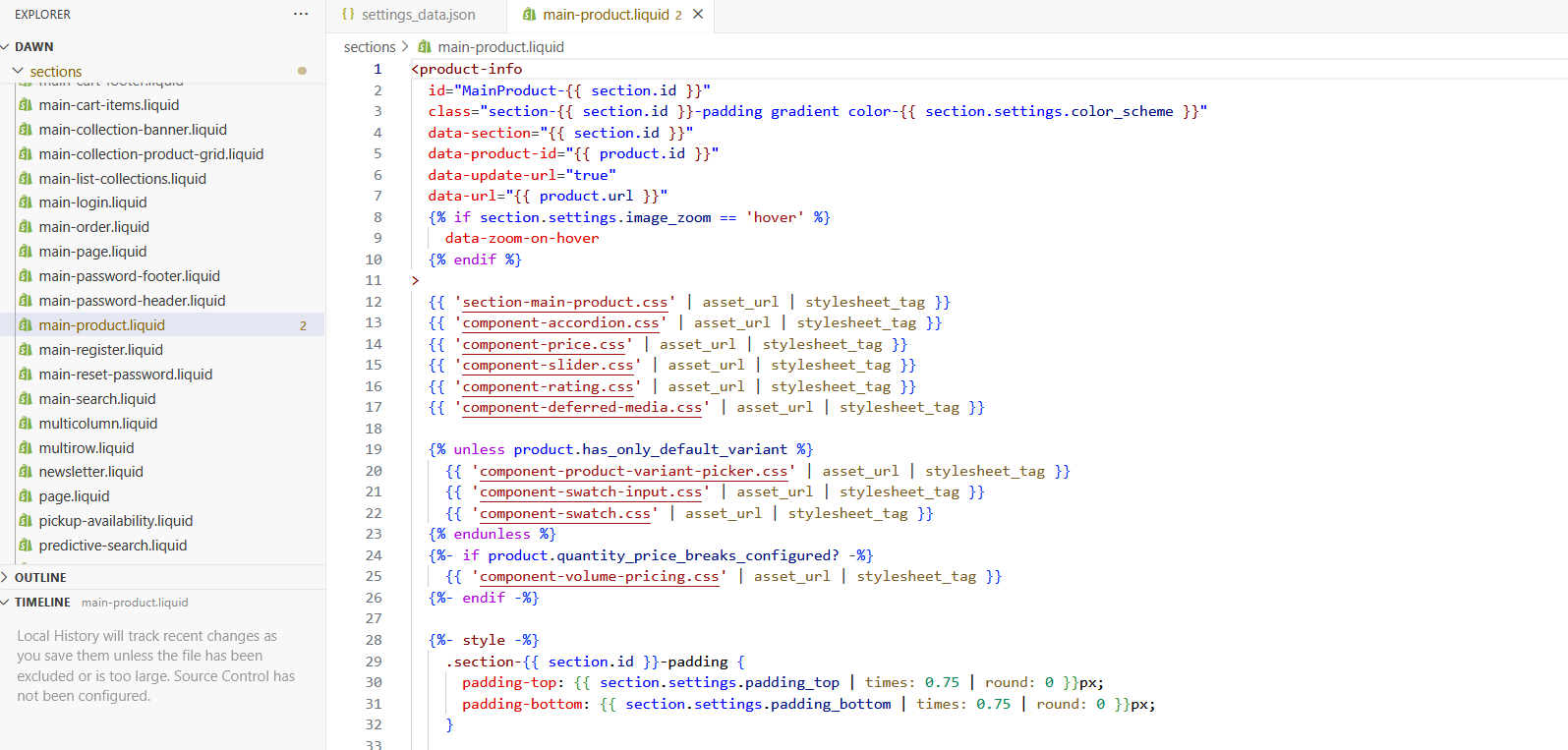
Most themes can display inventory data via Liquid. A common approach is a threshold: show “Low stock” when inventory is below 5–10 units. This method is accurate, but changes may break during theme updates if not maintained properly.
Option 3: Automated stock counter + alerts (best for growing catalogs)
If you want a consistent, conversion-optimized “stock countdown” experience across many products and variants, automation helps you keep messaging accurate and saves time—especially when you restock frequently.
Manual vs theme code vs automated low stock counter (Shopify)
| What you’re comparing | Manual updates | Theme code (Liquid) | Automated stock counter (e.g., Zonvi) |
|---|---|---|---|
| Setup time | Fast (minutes) | Medium (1–3 hours+) | Fast (minutes) |
| Accuracy | Low (easy to forget) | High (tied to inventory) | High (tied to inventory) |
| Scales to many SKUs/variants | Poor | Good (but needs maintenance) | Excellent |
| Theme update risk | None | Medium (code can break / needs re-merge) | Low (typically no theme edits) |
| Control over design/copy | Basic | High (fully customizable) | High (settings + styling options) |
| Works across products consistently | No | Yes (if implemented everywhere) | Yes (apply rules store-wide) |
| Best for | Very small catalogs, one-off launches | Merchants with dev help who want full control | Growing catalogs, frequent restocks/drops |
| Typical downside | Becomes inaccurate + time sink | Requires developer + ongoing maintenance | App cost (but saves time) |
Tip: Keep “Only X left” truthful by tying it to real Shopify inventory.
Set up Shopify low inventory alerts (so you restock before it’s “sold out”)
Low stock messaging helps the shopper—but you also want a merchant-side system to prevent surprise stockouts. Shopify supports low-inventory style alerts via reports, notifications, and workflow tools depending on your setup.
At a minimum, do this:
- Review inventory levels weekly (or daily during campaigns).
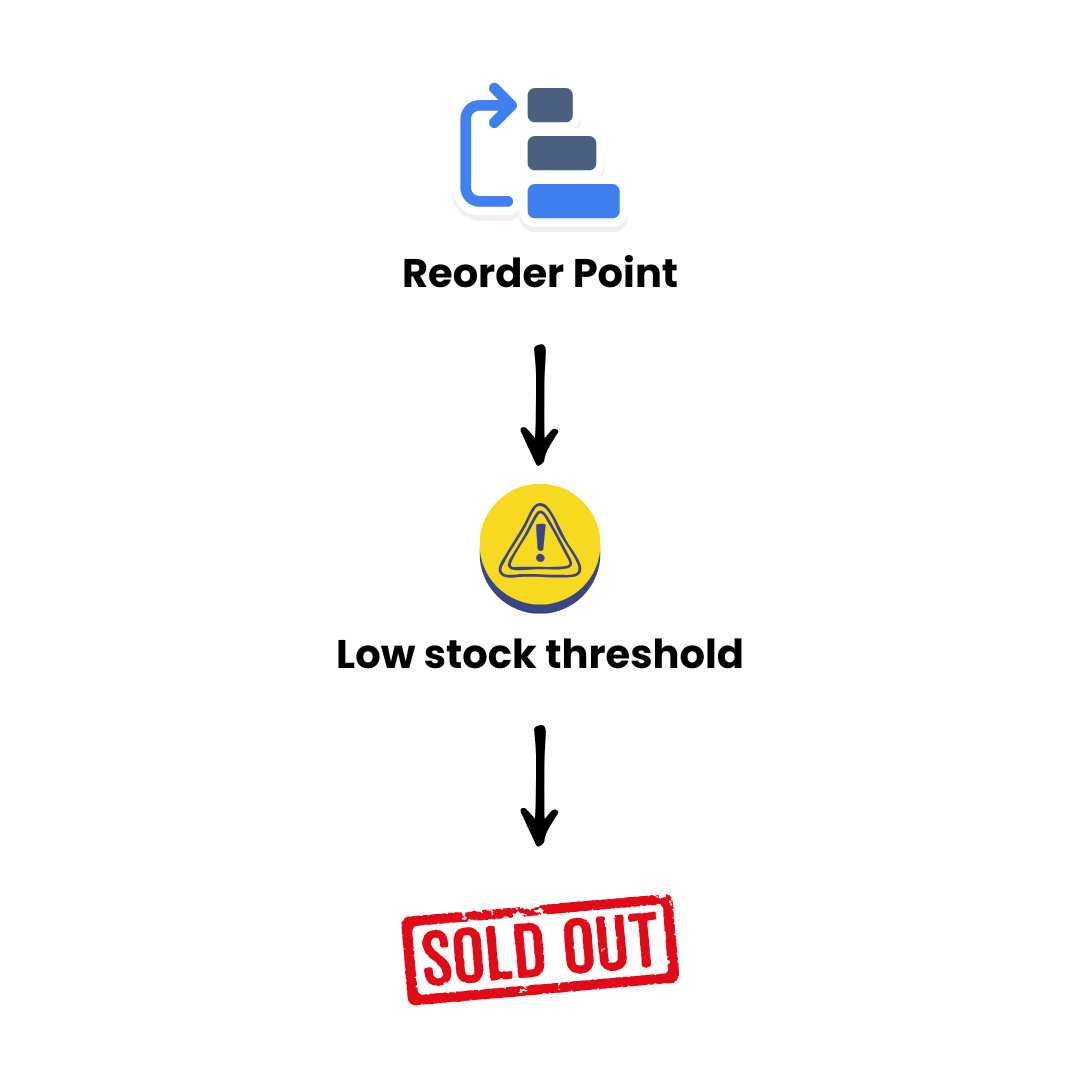
- Create a simple “reorder point” per SKU (e.g., reorder at 10, low stock at 5).
- Segment fast movers vs slow movers so alerts are meaningful.
Low stock vs sold out vs out of stock (and what to say)
These terms impact conversion differently:
- Low stock: Use when inventory is below your threshold. Keep copy calm and factual: “Only 3 left in stock.”
- Out of stock / Sold out: Use when inventory hits zero and you are not taking orders. Add a clear next step: “Notify me when available.”
- Backorder (continue selling): Use when you allow purchase at zero inventory. Be transparent with ship time: “Ships in 7–10 days.”
How to use stock countdown and sale countdown without feeling spammy
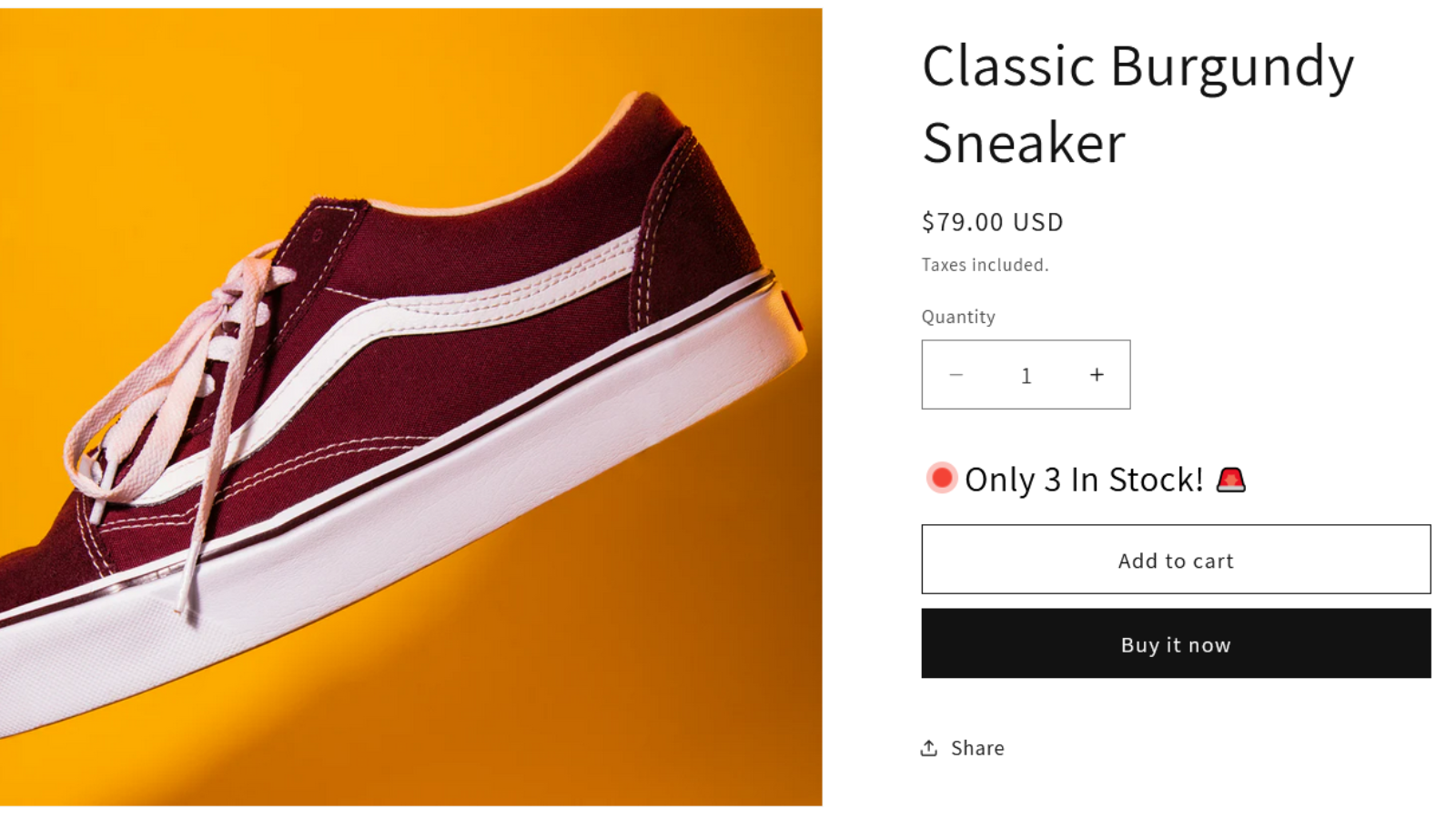
“Stock countdown Shopify” widgets can work well, but only if they’re tied to real inventory and placed thoughtfully. A good rule: show the message near the buy box (price, variants, Add to Cart) and avoid flashing animations.
If you’re also running a promotion, a “Shopify sale countdown” can reinforce urgency—just don’t stack too many urgency signals at once. One strong, truthful signal beats three noisy ones.
A scalable approach: show low stock automatically with Zonvi
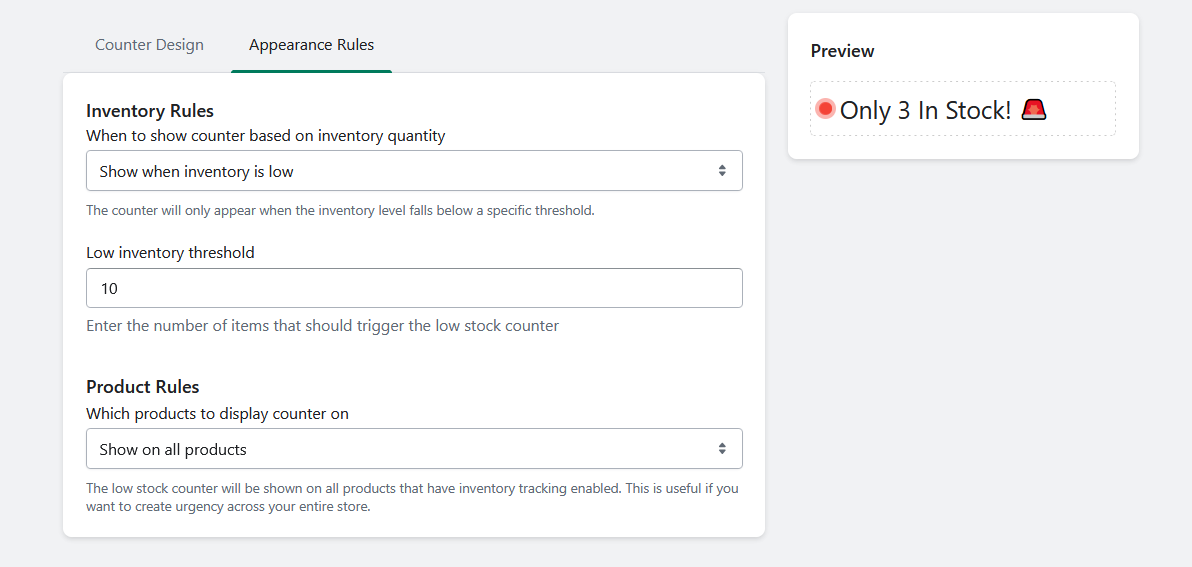
If you want to add low stock messaging across your catalog without editing theme code for every change, Zonvi: Low Stock Counter helps you display accurate, conversion-friendly inventory cues (like low stock badges / counters) based on your Shopify inventory levels.
Where it tends to fit best:
- Stores with many variants (sizes, colors) where manual messaging breaks quickly.
- Brands running frequent drops and restocks.
- Merchants who want consistent urgency styling across themes and product templates.
Want accurate low stock messaging without constant updates?
Set a clear threshold, keep messaging honest, and let your product pages do more of the selling work—especially during launches and promotions.
FAQ: Low stock on Shopify

How do I show low stock on Shopify product pages?
You can show low stock by adding a theme badge tied to variant inventory (Liquid), or using an automated Shopify stock counter solution that updates messaging as inventory changes.
What’s a good threshold for “low stock”?
Common thresholds are 3–5 for low-priced fast movers, and 5–10 for higher-consideration products. Use a threshold that matches your restock cadence and demand volatility.
Is “Only X left” considered deceptive?
Not if it’s accurate. The risk comes from static or misleading counters. Tie messaging to real Shopify inventory levels and avoid artificial countdowns that don’t reflect stock.
What should I do when a product is sold out?
Make the status clear (“sold out Shopify” / “out of stock Shopify”) and provide an action: email signup, back-in-stock notification, or show related alternatives.
How do backorders work in Shopify?
Backorders typically use the “continue selling when out of stock” setting. If you enable it, be transparent about shipping timelines so customers know it’s a preorder/backorder scenario.
Will low stock messaging improve conversions?
Often, yes—especially on high-demand products—because it reduces hesitation and increases urgency. It works best when paired with clear shipping, returns, and honest copy.